


Built from real client project problems

Feature
default framer rive
Lander rive component
Play when visible


Loading Priority
Touch Scroll Support
Play in Canvas Toggle
"And many more features built to make animation-heavy pages perform better."
Variable/Control
What it does & What value to use
The Source field connects your Rive animation to the component. Simply upload your .riv file using Framer's default Rive plugin, then copy the Rive URL along with the Artboard and State Machine details. Paste the URL into the Source field to instantly load the animation inside RivePlayer while gaining access to advanced playback controls, performance optimizations, and interactive features.
Fallback allows you to display a lightweight poster image while the Rive file is loading or if the animation fails to load. This helps maintain a polished user experience by avoiding empty containers and providing visual continuity during loading.
The Artboard field lets you select which artboard from your Rive file should be rendered. This is especially useful when a single .riv file contains multiple artboards, allowing you to reuse the same file across different sections of your website.
State Machine connects the interactive logic created inside Rive to your Framer project. By specifying the correct state machine name, you can enable hover effects, click interactions, button states, and advanced animation behaviors directly within the component.
Replay on Enter restarts the animation every time it re-enters the viewport. This is perfect for scroll-based storytelling, feature showcases, and animations that should replay whenever users scroll back to them
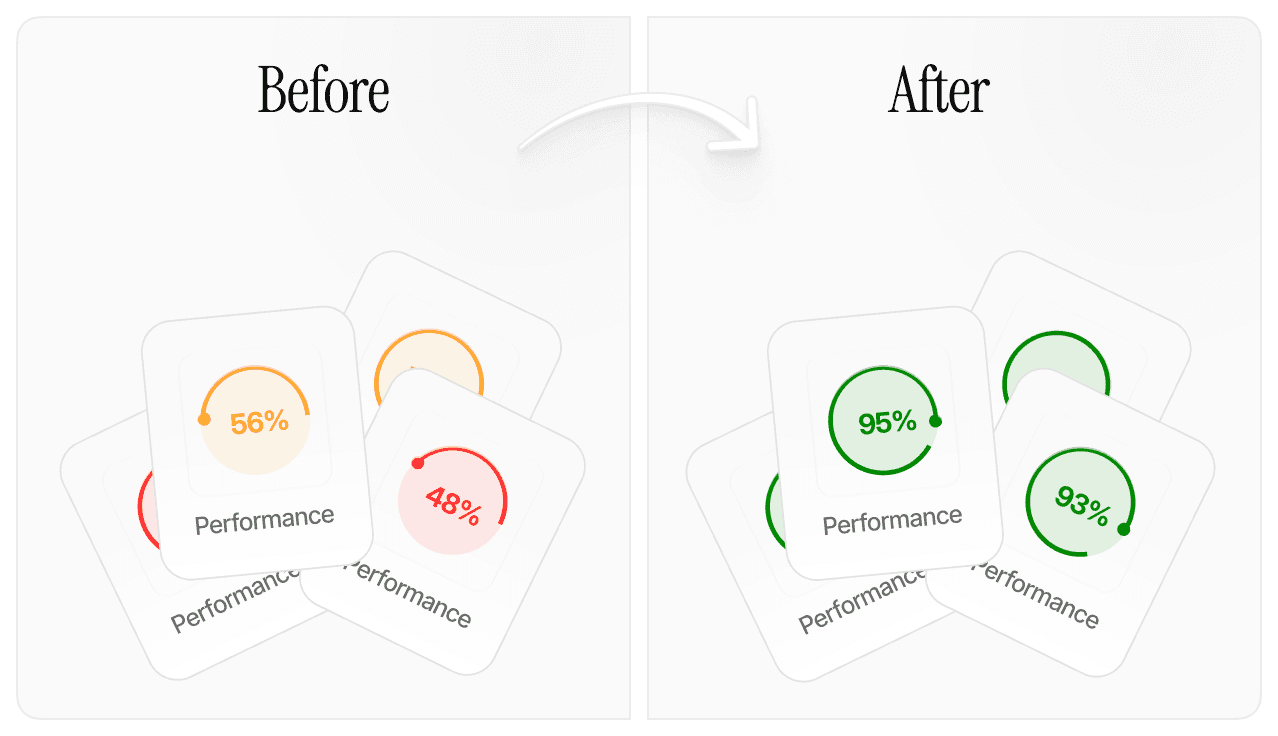
Play When Visible delays playback until the animation becomes visible on screen. This improves page performance by preventing off-screen animations from consuming resources before the user actually sees them.
Play In Canvas lets you preview Rive animations directly inside the Framer editor while you're designing. If you notice editor lag with large or complex Rive files, you can turn this option off to improve performance. The animation will still work normally in Preview mode and on your published website.
Priority determines the loading order of your animations. The component uses a priority-based loading system where lower numbers load first and higher numbers load later.
Priority 1 → Loads first (recommended for hero animations)
Priority 2 → Loads second
Priority 3 → Loads third
Priority 4+ → Continues loading in the order you define
Priority 0 → Default value and always loads last
This gives you complete control over which animations receive network and processing resources first. For example, you can assign Priority 1 to your hero animation, Priority 2–5 to important above-the-fold animations, and leave decorative or footer animations at Priority 0 so they don't compete during the initial page load.
The system scales automatically, allowing you to use as many priority levels as needed based on the number of animations in your project. This helps ensure that the most important animations appear first while keeping overall page performance optimized.
Touch Scroll ensures users can continue scrolling naturally on mobile devices even when their finger is positioned over a Rive animation. This creates a smoother mobile browsing experience and prevents animations from blocking scroll gestures.
Handle Events enables interactive state machine functionality such as hover effects, button clicks, and user-triggered animations. When disabled, clicks and touch interactions pass through the animation layer to the elements behind it.
The Fit setting controls how the Rive artboard scales and adapts within the component frame. Choose the mode that best matches your layout requirements and how you want the animation to behave across different screen sizes.
Layout – Uses the artboard's native layout settings defined inside Rive. This is the recommended option when your Rive file has responsive layouts configured, allowing the animation to adapt automatically.
Contain – Scales the animation to fit entirely within the container while maintaining its aspect ratio.
Cover – Fills the entire container while maintaining aspect ratio. Parts of the animation may be cropped.
Fill – Stretches the animation to completely fill the container.
Fit Width – Scales the animation based on the container width.
Fit Height – Scales the animation based on the container height.
None – Displays the animation at its original size without scaling.
Scale Down – Keeps the original size unless the animation is larger than the container, in which case it scales down to fit.
For most responsive Rive files, layout is the preferred option as it respects the responsive behavior configured directly inside the Rive editor.
The alignment setting controls where the Rive artboard is positioned within its container. This is especially useful when your animation doesn't fill the available space or when you want to focus on a specific area of the artboard.
Choose from the following alignment options:
Center – Centers the animation both horizontally and vertically.
Top Left – Positions the animation in the top-left corner.
Top Center – Positions the animation at the top center.
Top Right – Positions the animation in the top-right corner.
Center Left – Centers the animation vertically and aligns it to the left.
Center Right – Centers the animation vertically and aligns it to the right.
Bottom Left – Positions the animation in the bottom-left corner.
Bottom Center – Positions the animation at the bottom center.
Bottom Right – Positions the animation in the bottom-right corner.
Use Alignment together with the Fit setting to ensure your animation is displayed exactly where you want it within the component frame, regardless of screen size or container dimensions.
Community Feedback
What Should We Build Next?